
How to find who doesn't follow you back — safely — with CircleMate
CircleMate uses the official Instagram data export Instagram gives you directly. You never share your password, and we never log in to Instagram on your behalf. Follow the screenshots below — it takes about 2 minutes on your end, then Instagram emails you a ZIP a few minutes later.
Prefer to read? The full step-by-step guide is below.
- 1Open Accounts Center via Instagram Settings → Your information and permissions.
- 2Tap Export your information → Create export → Export to device.
- 3Pick Customise information and select only Followers and following.
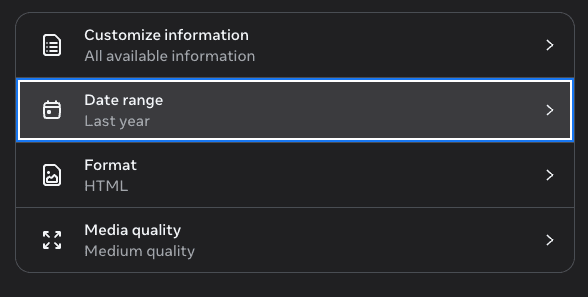
- 4Choose HTML as the format and All time as the date range.
- 5Wait for Instagram's email, download the
.zip, and upload it to CircleMate.
Open the More menu, then Settings
On the Instagram desktop site, click More in the left sidebar — it's at the bottom, right above "Also from Meta". Then click Settings from the popup that appears.
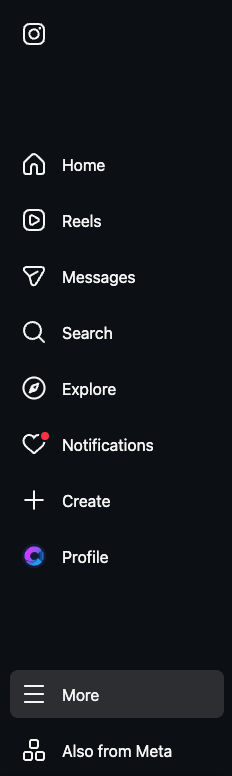
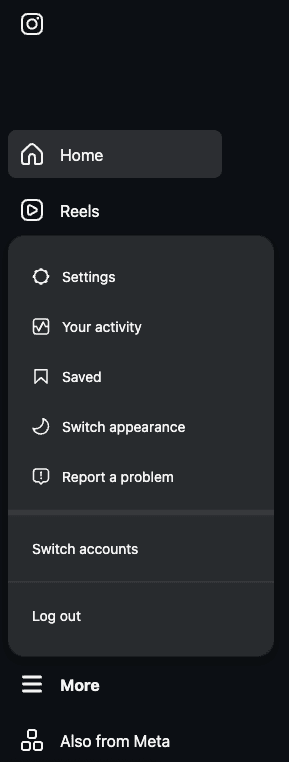
Open Instagram → tap your profile → tap the menu icon (☰) in the top-right → tap Settings and activity. The rest of the steps look identical.
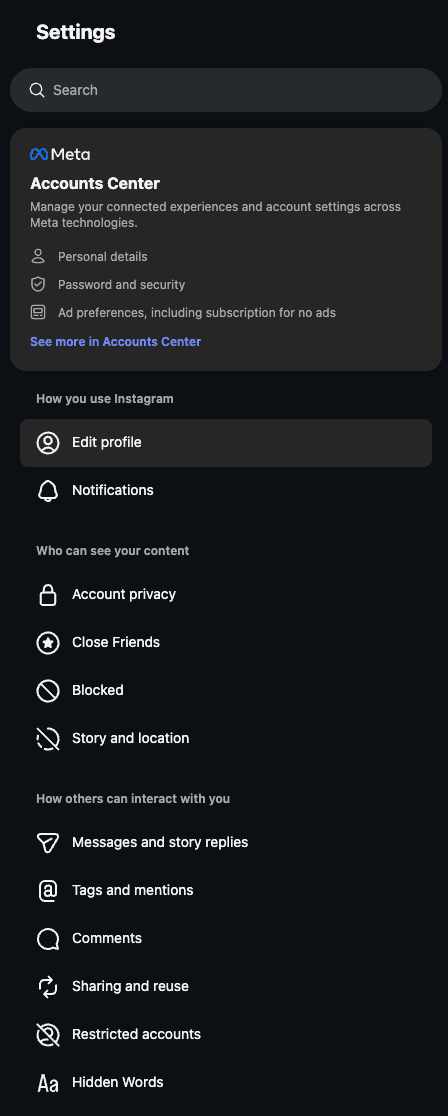
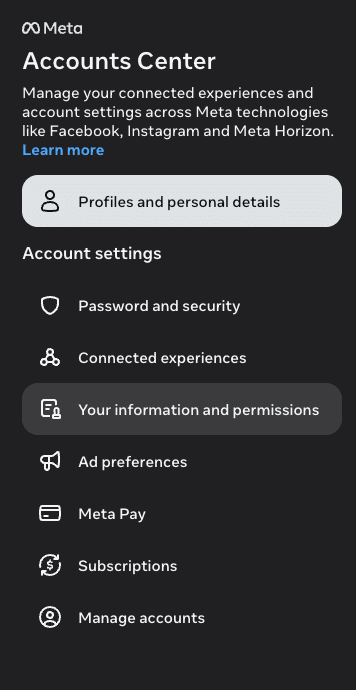
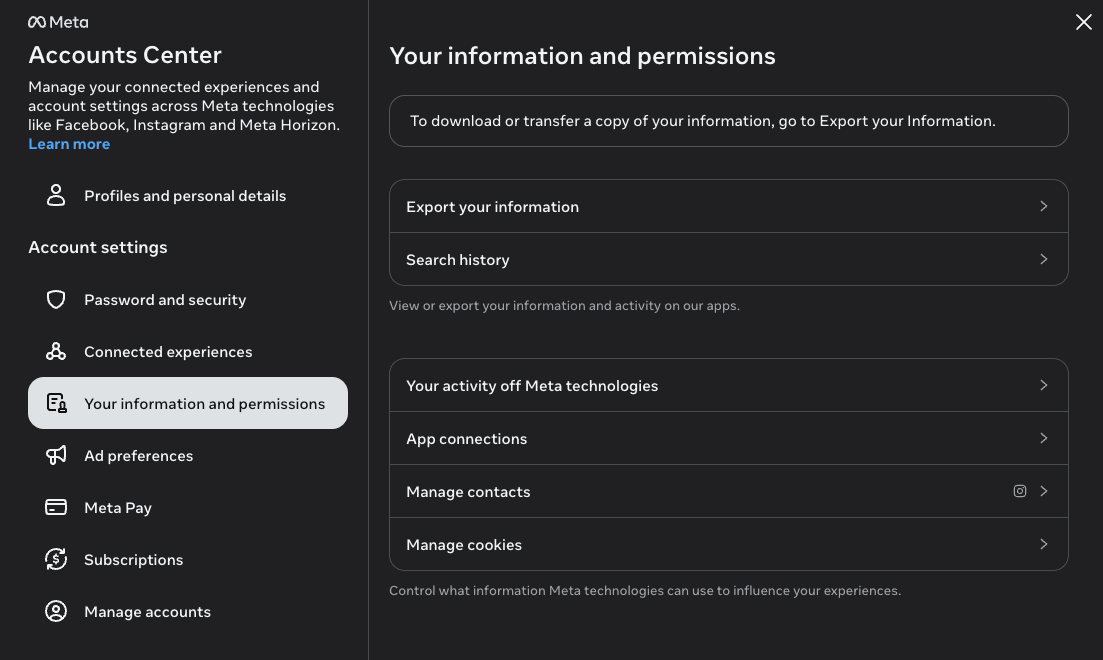
Open Accounts Center → Your information and permissions
In Settings, scroll to the Accounts Center card at the top and tap See more in Accounts Center. Then choose Your information and permissions from the left menu.
What you'll do
- See more in Accounts Center in the Settings sidebar.
- From the left menu, select Your information and permissions.
- You'll land on a page with Export your information at the top.
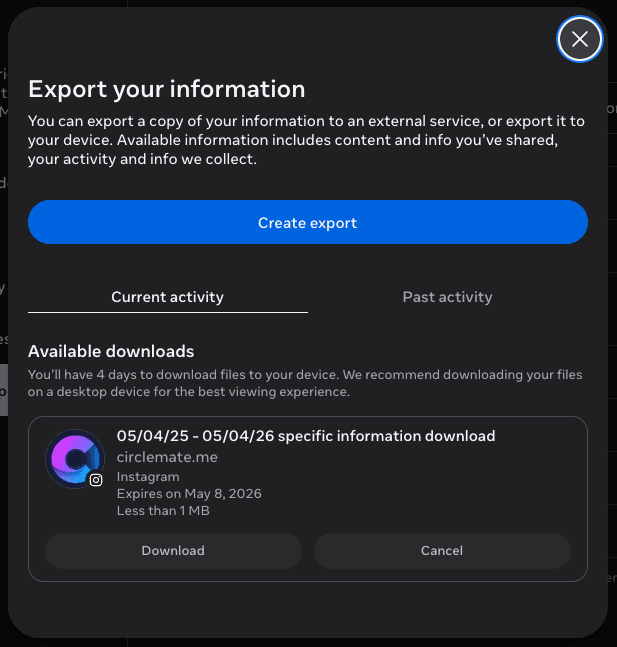
Tap Export your information → Create export
On the Your information and permissions screen, tap Export your information. A new dialog opens — tap the big blue Create export button.
What you'll see
- A panel titled Your information and permissions.
- The first row says Export your information — click it.
- Confirm any account picker if you have multiple Instagram accounts.
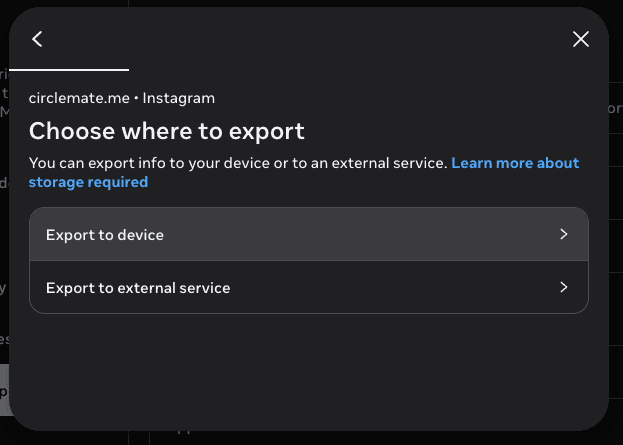
Choose "Export to device"
Instagram asks where to send the export. Choose Export to device — this is the only option CircleMate can use. Don't pick "Export to external service".
Why "to device"?
- You'll get a downloadable
.zipfile via email. - That ZIP is the only file CircleMate accepts.
- External services send your data elsewhere — not useful here.
Customise — keep only Followers and Following
Choose Some of your information (a.k.a. "Customise"). Instagram will pre-select everything. Tap Clear all at the top of each section, then scroll down and check only Followers and following under Connections.
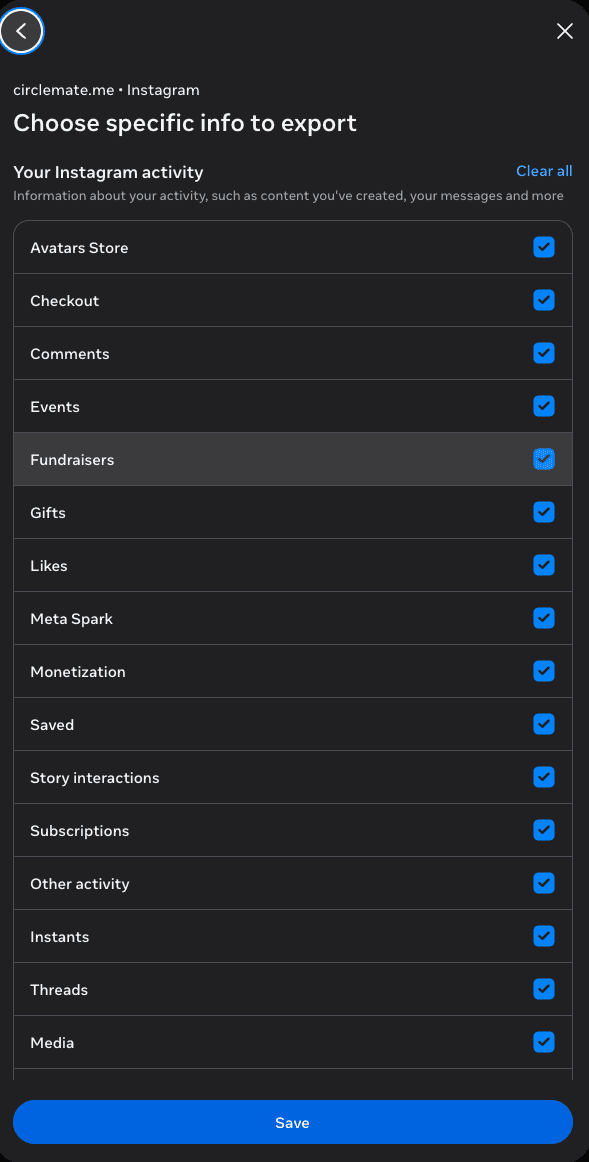
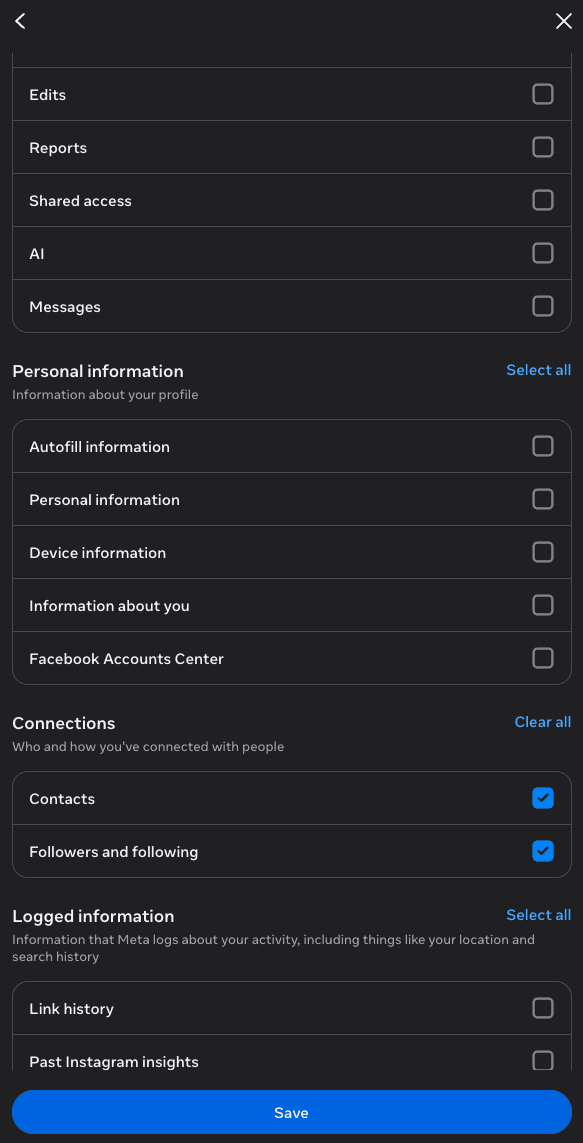
Smaller export = faster email from Instagram (often minutes vs. hours), and CircleMate only ever reads the followers/following files anyway.
Tap Save at the bottom to confirm your selection.
Set Format = HTML and Date range = All time
After saving, you'll see two more options. These two settings are critical — getting them wrong is the #1 reason exports don't work in CircleMate.
✓Format → HTML
HTML exports include more complete data than JSON — CircleMate reads both, but HTML gives you the most accurate results.
✓Date range → All time
Anything shorter and the results will be incomplete — old followers will look "missing".
Upload the original .zip exactly as Instagram sent it. Extracting it first can break the file structure CircleMate reads.
Wait for the email — then upload to CircleMate
Instagram emails you when the export is ready. For Followers + Following only, this is usually a few minutes to an hour. Click the link in the email, download the .zip, and drag it into CircleMate's upload page.
What to expect
- Email subject: "Your Instagram data is ready to be downloaded".
- The link opens a download page — save the
.zipto your computer. - Open CircleMate → click Upload → drag in the ZIP.
- You'll see your results in seconds. We never store your password.
Why your results might look wrong
If the numbers don't match Instagram's profile counts, one of these is almost always the cause:
- You exported data from a different Instagram account than expected.
- You picked a short date range instead of All time.
- You unzipped the file before uploading.
- You uploaded the wrong ZIP (from another export or another account).
How to fix it
- Repeat Step 1 carefully and pick the correct account.
- Re-request the export with HTML + All time.
- Download the new ZIP from the Instagram email.
- Upload that original ZIP to CircleMate (don't unzip).
Why CircleMate is safer than other tools
"Login with Instagram" tools are convenient but risky — they often violate Instagram's terms and can get your account flagged. CircleMate is built differently.
✓No Instagram login required
We never ask for your Instagram password. Your credentials never touch our servers.
✓Uses Instagram-provided data
Your export comes directly from Instagram, not scraped from the web — fully ToS-compliant.
✓Simple and transparent
CircleMate only reads the followers and following data files from your export — nothing else.
✓Won't get your account flagged
No automation, no scraping, no third-party login. Nothing for Instagram to flag.
Ready to check your circle?
Create a free CircleMate account and upload your Instagram export.
Get started — it's free